
Extras/cloudgps: Difference between revisions
| (5 intermediate revisions by the same user not shown) | |||
| Line 9: | Line 9: | ||
}} | }} | ||
The cloudgps package provides a smooth | The cloudgps package provides a smooth, interactive location viewer and car navigation. | ||
== Status == | == Status == | ||
| Line 15: | Line 15: | ||
Works fine with location services. | Works fine with location services. | ||
Routing works now through OSRM and geocoding through Nominatim (OpenStreetMap). | |||
Maps are provided by OpenStreetMap and GoogleMaps. (Satellite view still works) | |||
== Screenshots == | == Screenshots == | ||
| Line 26: | Line 29: | ||
== Tutorial == | == Tutorial == | ||
From Talk.maemo.org: | From Talk.maemo.org: (thanks to dwaradzyn) | ||
CloudGPS is a complete rewrite of J2ME version | CloudGPS is a complete rewrite of J2ME version to N900 using C and OpenGL ES for smooth operation. | ||
Your current location is shown as blue dot on screen. The dot turns green when GPS is fixed. The bars in upper right section of the screen show signal strenght of GPS satellites. They turn brighter for satellites that are currently active. (currently hidden) | Your current location is shown as blue dot on screen. The dot turns green when GPS is fixed. The bars in upper right section of the screen show signal strenght of GPS satellites. They turn brighter for satellites that are currently active. (currently hidden) | ||
Touchscreen controls: | Touchscreen controls: | ||
Tap zoom in/zoom out buttons to change zoom level by 1 or hold to change by few levels. Hold shift while touching zoom buttons to change zoom level by a fraction. Tap "my location" button (the one with blue dot) to toggle following your current location (and direction in 3D mode and when rotation is enabled in 2D mode). Goggles icon is used for searching. Compass icon shows current view direction and toggles rotation mode in 2D. Rest of screen is used for kinetic scrolling. | Tap zoom in/zoom out buttons to change zoom level by 1 or hold to change by few levels. Hold shift while touching zoom buttons to change zoom level by a fraction. Tap "my location" button (the one with blue dot) to toggle following your current location (and direction in 3D mode and when rotation is enabled in 2D mode). Goggles icon is used for searching. Compass icon shows current view direction and toggles rotation mode in 2D. Rest of screen is used for kinetic scrolling. | ||
| Line 40: | Line 44: | ||
In 3D mode and when rotation mode is enabled upper part of screen is used to rotate view. | In 3D mode and when rotation mode is enabled upper part of screen is used to rotate view. | ||
Important keyboard controls: | Important keyboard controls: | ||
Arrows - scroll/rotate the map, | Arrows - scroll/rotate the map, | ||
Dot - zoom out, | Dot - zoom out, | ||
Enter - zoom in, | Enter - zoom in, | ||
Space - toggle "follow me" mode, | Space - toggle "follow me" mode, | ||
Q - quit application, | Q - quit application, | ||
N - switch to next tile provider. See /opt/cloudgps/providers.ini file. | N - switch to next tile provider. See /opt/cloudgps/providers.ini file. | ||
Shift + N - switch previous tile provider. | Shift + N - switch previous tile provider. | ||
R - next routing provider | R - next routing provider | ||
Shift + R - previous routing provider | Shift + R - previous routing provider | ||
Additional keyboard controls: | Additional keyboard controls: | ||
G - [debug] toggle grid, | G - [debug] toggle grid, | ||
C - [debug] toggle current latitude and longitude and distance from current GPS position. | C - [debug] toggle current latitude and longitude and distance from current GPS position. | ||
H - [debug] show tile arrays with states and visibility range | H - [debug] show tile arrays with states and visibility range | ||
When Shift is pressed zooming behaviour is altered. | When Shift is pressed zooming behaviour is altered. | ||
X - toggle accelerometer usage. Accelerometer is calibrated in the moment it is enabled. | X - toggle accelerometer usage. Accelerometer is calibrated in the moment it is enabled. | ||
S - switch to next search provider (currently CloudMade and Google addres search are supported) | S - switch to next search provider (currently CloudMade and Google addres search are supported) | ||
O - add temporary marker on screen centre. | O - add temporary marker on screen centre. | ||
Backspace - return to previous position after pressing "my location" button. | Backspace - return to previous position after pressing "my location" button. | ||
Z - toggle offline mode. | Z - toggle offline mode. | ||
U - [debug] route me here | U - [debug] route me here | ||
D - route overview flyby. The camera will go to route start and then follow route till the end. Use at high zoom levels (17+). | D - route overview flyby. The camera will go to route start and then follow route till the end. Use at high zoom levels (17+). | ||
M - toggle mipmapping (display quality) | M - toggle mipmapping (display quality) | ||
P - force orientation change | P - force orientation change | ||
V - show app version | V - show app version | ||
When search bar is active keys are used as text input. Only ASCII characters supported right now. Use Enter to search query. | When search bar is active keys are used as text input. Only ASCII characters supported right now. Use Enter to search query. | ||
Latest revision as of 06:17, 4 June 2026
| Extras/cloudgps | |
|---|---|
 | |
| Status | Working |
| Devices | Nokia_N900,Motorola_Droid_4,PinePhone |
| Leste repo | https://github.com/maemo-leste-extras/cloudgps |
| Category | Category:Navigation |
| Packager | User:Wizzup |
The cloudgps package provides a smooth, interactive location viewer and car navigation.
Status
Works fine with location services.
Routing works now through OSRM and geocoding through Nominatim (OpenStreetMap).
Maps are provided by OpenStreetMap and GoogleMaps. (Satellite view still works)
Screenshots
-
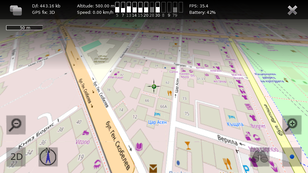 3D view
 -
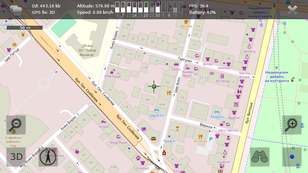 2D view
 -
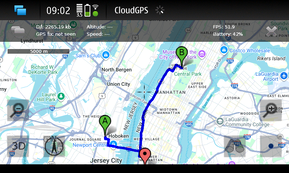 N900
N900


-1.png)
Tutorial
From Talk.maemo.org: (thanks to dwaradzyn)
CloudGPS is a complete rewrite of J2ME version to N900 using C and OpenGL ES for smooth operation.
Your current location is shown as blue dot on screen. The dot turns green when GPS is fixed. The bars in upper right section of the screen show signal strenght of GPS satellites. They turn brighter for satellites that are currently active. (currently hidden)
Touchscreen controls:
Tap zoom in/zoom out buttons to change zoom level by 1 or hold to change by few levels. Hold shift while touching zoom buttons to change zoom level by a fraction. Tap "my location" button (the one with blue dot) to toggle following your current location (and direction in 3D mode and when rotation is enabled in 2D mode). Goggles icon is used for searching. Compass icon shows current view direction and toggles rotation mode in 2D. Rest of screen is used for kinetic scrolling.
You can tap and hold anywhere on map to invoke popup menu. By choosing "Directions from here" or "Directions to here" you can start routing. Route has a green marker with letter "A" on starting point and green marker with letter "B" on destination. You can tap and hold one of those markers and then drag it (if you are near screen edge the map will scroll for you) to another place. This will trigger route recalculation.
Route is saved locally and when it was displayed during last CloudGPS session it will be restored without using network on next startup. Turn by turn instructions are displayed when current position is near route. Also distance to destination and distance to next instruction is displayed.
In 3D mode and when rotation mode is enabled upper part of screen is used to rotate view.
Important keyboard controls:
Arrows - scroll/rotate the map,
Dot - zoom out,
Enter - zoom in,
Space - toggle "follow me" mode,
Q - quit application,
N - switch to next tile provider. See /opt/cloudgps/providers.ini file.
Shift + N - switch previous tile provider.
R - next routing provider
Shift + R - previous routing provider
Additional keyboard controls:
G - [debug] toggle grid,
C - [debug] toggle current latitude and longitude and distance from current GPS position.
H - [debug] show tile arrays with states and visibility range
When Shift is pressed zooming behaviour is altered.
X - toggle accelerometer usage. Accelerometer is calibrated in the moment it is enabled.
S - switch to next search provider (currently CloudMade and Google addres search are supported)
O - add temporary marker on screen centre.
Backspace - return to previous position after pressing "my location" button.
Z - toggle offline mode.
U - [debug] route me here
D - route overview flyby. The camera will go to route start and then follow route till the end. Use at high zoom levels (17+).
M - toggle mipmapping (display quality)
P - force orientation change
V - show app version
When search bar is active keys are used as text input. Only ASCII characters supported right now. Use Enter to search query.
Tap on any map marker on screen to get it center.
-
This page was last edited on 4 June 2026, at 06:17.